2012年1月5日木曜日

NotesDBのデータを直接Excelに書き出す

ビューをCSVに書き出す機能は標準で用意されていますが、以下のスクリプトを参考にすれば、直接Excelに書き出すことが出来ます。(当然のことですが、Excelがインストールされていないと使えません。)
以下のスクリプトはビューのボタンに配置したときのサンプルです。

Sub Click(Source As Button)
    Dim s As New NotesSession
    Dim session As New NotesSession
    Dim db As NotesDatabase
    Dim doc As NotesDocument
    Dim view As NotesView
    Dim XLApp As Variant
    Dim XLBook As Variant
    Dim Code, Section, Name As Variant
    Dim x As Integer
    Set db = s.CurrentDatabase
    Set view = db.GetView("EmployeeView")
    Set doc = view.GetFirstDocument
    Set XLApp = createobject("Excel.Application")
    If ( XLApp Is Nothing ) Then
        Messagebox "Excelが見つかりません。
                             Excelが正しくインストールされていることを
                             確認してください。", MB_OK, "エラー"
        Exit Sub
    End If
    XLApp.Workbooks.add
    Set XLBook = XLApp.ActiveWorkbook
    XLApp.Visible=True
'見出し
    XLBook.Worksheets( 1 ).Cells( 1, 1 ).Value="社員コード"
    XLBook.Worksheets( 1 ).Cells( 1, 2 ).Value="部署"
    XLBook.Worksheets( 1 ).Cells( 1, 3 ).Value="氏名"
    x = 2
    Do Until doc Is Nothing
        Code = doc.GetItemValue("Code")
        Section = doc.GetItemValue("Section")
        Name = doc.GetItemValue("Name")
        XLBook.Worksheets( 1 ).Cells( x, 1 ).Value = Code(0)
        XLBook.Worksheets( 1 ).Cells( x, 2 ).Value = Section(0)
        XLBook.Worksheets( 1 ).Cells( x, 3 ).Value = Name(0)
        x = x + 1
        Set doc = view.GetNextDocument(doc)
    Loop
End Sub

2011年11月23日水曜日

Firefox Googleツールバー代替方法

Firefox5.0以降、 Googleツールバーが標準では使えなくなってしまいました。
いろいろなサイトで代替方法を紹介してありますが、自分的にはFirefox標準の検索バーをGoogleツールバーなみに強化出来れば十分なので、その方法を紹介します。

1.検索バーの横に履歴表示ボタンを追加する
userChrome.cssに以下のコードを追加します。なければ新規に作成します。

/* 検索バーの右側に履歴を出すボタンを表示 */
#searchbar .autocomplete-history-dropmarker {
    display: -moz-box !important;
    -moz-binding: url("chrome://global/content/bindings/autocomplete.xml#history-dropmarker");
}


userChrome.cssは以下の場所にあります。
Windows 2000, XP %APPDATA%\Mozilla\Firefox\Profiles\(英数字の羅列).(プロファイル名)\chrome\userChrome.css
Windows Vista, 7 %USERPROFILE%\AppData\Roaming\Mozilla\Firefox\Profiles\(英数字の羅列).(プロファイル名)\Chrome\userChrome.css

履歴表示

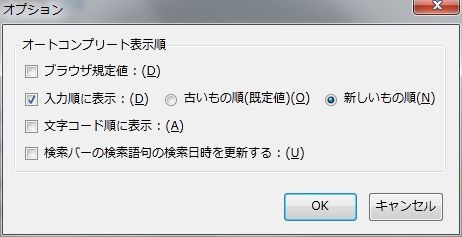
2.アドオン「Searchbar Autocomplete Order」を導入する
こちらのアドオンで検索履歴を検索順に並べかえることが出来るようになります。
https://addons.mozilla.org/ja/firefox/addon/searchbar-autocomplete-order/
Searchbar Autocomplete Order

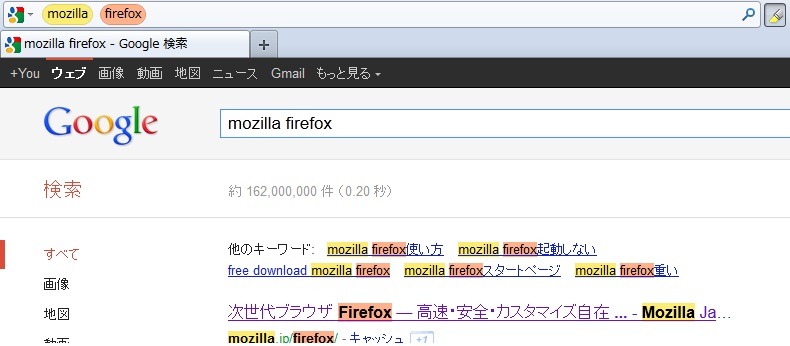
3.アドオン「SearchWP」を導入する
このアドオンで、検索バーから「ページ内検索」と「ハイライト表示」が出来るようになります。
https://addons.mozilla.org/ja/firefox/addon/searchwp/
SearchWP

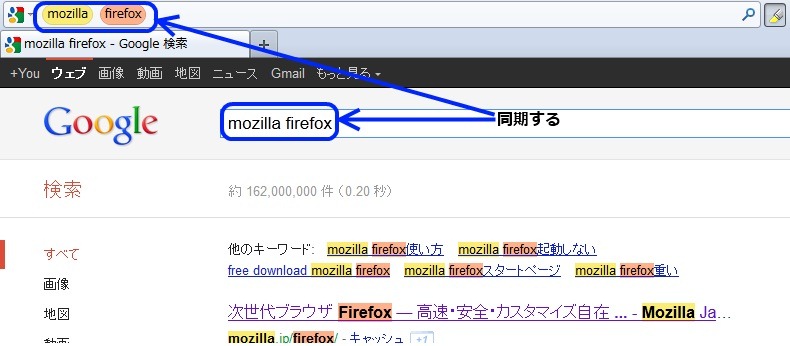
4.アドオン「SearchBox Sync」を導入する
このアドインで検索バーと検索エンジンのキーワードを同期することが出来るようになります。
https://addons.mozilla.org/ja/firefox/addon/searchbox-sync/
SearchBox Sync

2011年11月22日火曜日

ログオンスクリプトでスクリーンセイバーの伝言板を統一する方法

企業内でスクリーンセイバーの伝言板を統一したいというニーズは有るかと思います。
それに対応するためのVBスクリプトを書きました。
サーバーに共有フォルダを作成し、「伝言板.txt」を保存することで、表示する文字列を簡単に変更することが可能です。

Dim WshShell

'コンフィルファイル名
configname="\\Server\伝言板.txt"

'値を代入する変数と、検索するキーと、デフォルト値
Value = readconf("TXT","0")
'Wscript.echo Value

Set WshShell=WScript.CreateObject("WScript.Shell")
WshShell.RegWrite "HKCU\Control Panel\Screen Saver.Marquee\Text",Value, "REG_SZ"
'終了
WScript.quit

'読みとり関数
Private Function readconf(key,def)

  Dim c,conf,LD

  Set c=CreateObject("Scripting.FileSystemObject")
  Set conf=c.OpenTextFile(configname)

  readconf=def
  key=key & "="

  Do While conf.AtEndOfStream <> True

    LD = conf.readline
    If (left(trim(LD),1)<>"#") and (Len(Trim(LD))<>0) then
      If len(key) < len(LD) then
        If left(LD,len(key))=key then
          readconf=right(LD,len(LD)-Len(key))
        End if
      End if
    End if

  Loop

  conf.close
  set c = nothing

End Function

伝言板.txtの書き方

TXT=こんにちは

VB.NETからNotesDBへアクセスするサンプルコード

自分の環境では「参照の追加」は不要ですが、環境によっては必要かもしれませんので、ご注意を。

        Dim session As Object
        Dim db As Object
        Dim view As Object
        Dim doc As Object

        Dim strDominoServer As String
        Dim strDBName As String
        Dim strViewName As String

        Dim NSubject As Object
        Dim strSubject As String

        ' ***NotesDBからの読み込み
        ' *** セッションの確立
        session = CreateObject("Notes.NotesSession")

        ' *** ノーツDBの取得
        db = session.GetDatabase(strDominoServer, strDBName)
        If (Not db.IsOpen()) Then
            ' *** エラーメッセージの表示
            MsgBox("データベースが見つかりませんでした", vbOKOnly + vbCritical)
            GoTo load_exit
        End If

        ' *** ビューの取得
        view = db.GetView(strViewName)
        If (view Is Nothing) Then
            ' *** エラーメッセージの表示
            MsgBox("ビューが見つかりませんでした", vbOKOnly + vbCritical)
            GoTo load_exit
        End If

        ' *** ビューより最初の文書を取得
        doc = view.GetFirstDocument()

        ' *** ビューより全文書を読み込むまでループ
        Do While (Not (doc Is Nothing))
            'タイトル
            NSubject = doc.GetItemValue("Subject")
            strSubject = NSubject(0).ToString

            doc = view.GetNextDocument(doc)
        Loop

load_exit:

        ' *** オブジェクトの破棄
        db = Nothing
        session = Nothing

2011年11月10日木曜日

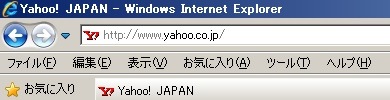
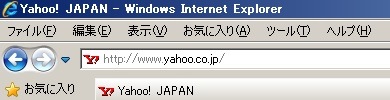
IE8のメニューバーをIE6風にアドレスバーの上に表示するVBスクリプト

IE1IE2

Dim WshShell

Set WshShell=WScript.CreateObject("WScript.Shell")
WshShell.RegWrite "HKCU\Software\Microsoft\Internet Explorer\Toolbar\WebBrowser\ITBar7Position",1, "REG_DWORD"

WScript.Echo("変更終了")

WScript.quit

上記のVBスクリプトを拡張子「vbs」(例:ie.vbs)で保存するとそのまま使えます。

2011年11月9日水曜日

LotusScriptでSQLServerへアクセスする方法

Sub Click(Source As Button)
    Dim cn As Variant
    Dim rs As Variant
    Dim strSQL As String
    Dim strEmployeeID As String
    Dim ws As New NotesUIWorkspace
    Dim uidoc As NotesUIDocument

    Set uidoc = ws.CurrentDocument
    Set cn = CreateObject("ADODB.Connection")
    Set rs = CreateObject("ADODB.Recordset")

    On Error Goto ConnectionErr
    'SQLServer接続文字列
    cn.ConnectionString = "Provider=SQLOLEDB ;" & _
    "Password='' ; User ID=sa;Initial Catalog=Northwind;Data Source=SQLServer"
    strEmployeeID = Trim(uidoc.FieldGetText("EmployeeID"))

    'SQL文
    strSQL = "SELECT EmployeeID, LastName " & _
    "FROM dbo.Employees " & _
    "WHERE (EmployeeID = " & strEmployeeID & ")"

    '接続開始
    Call cn.Open
    'SQL文発行
    Call rs.Open(strSQL,cn)
    '取得した値をフィールドにセット
    Call uidoc.FieldSetText("LastName",Trim(rs.Fields("LastName").Value))
    'Recordsetクローズ
    Call rs.Close
    'Connectionクローズ
    Call cn.Close
    '文書を更新する
    Call uidoc.Refresh

ConnectionExit:
    Exit Sub

ConnectionErr:
    Resume  ConnectionExit
End Sub

2011年11月8日火曜日

iTextsharpを利用してASP.NETでPDFファイルを作成する

先日JAVAのサンプルコードを公開致しましたが、そのASP.NET(VB.NET)版です。
iTextsharpは、JAVAのiTextの.NET版ですので、書き方は大きな違いはありません。

iTextsharpのライブラリを以下のサイトよりダウンロードして下さい。
http://sourceforge.net/projects/itextsharp/files/itextsharp/
日本語を表示させるには「iTextAsian.dll」も必要です。
http://sourceforge.net/projects/itextsharp/files/extras/

1.ソリューションエクスプローラーのプロジェクトのところで右クリックをし、「参照の追加」をクリック。
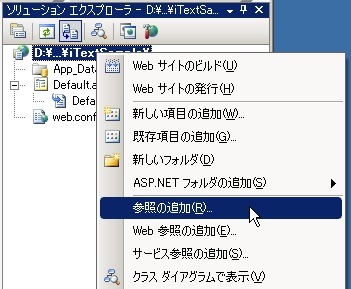
1.参照の追加

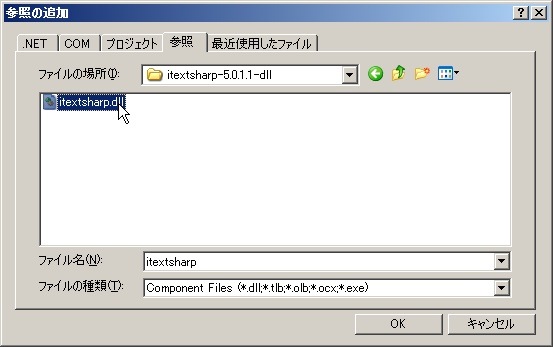
2.「itextsharp.dll」を選択。
2.iTextsharp_dll

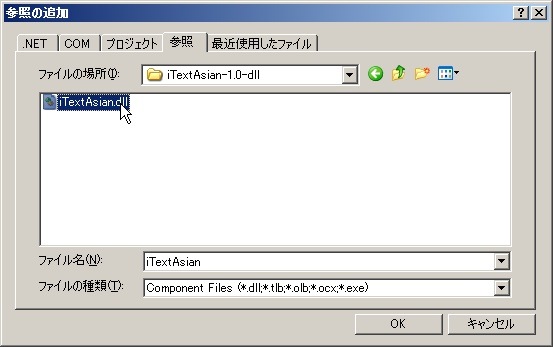
3.「itextasian.dll」を選択。
3.iTextAsian_dll

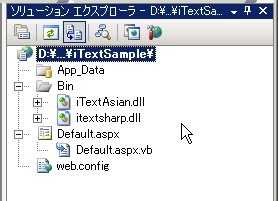
4.以下の様に表示されればOKです。
4.追加後

5.以下のソースを実行してブラウザ内の別タブ(別窓)でPDFファイルが表示されればOKです。

'iTextSharp関連の名前空間
Imports iText = iTextSharp.text
Imports iPdf = iTextSharp.text.pdf
Imports iFont = iTextSharp.text.Font
Imports iBaseColor = iTextSharp.text.BaseColor

Partial Class _Default
    Inherits System.Web.UI.Page

    Protected Sub Button1_Click (ByVal sender As Object, _
                                      ByVal e As System.EventArgs) Handles Button1.Click

        Dim strPDFName As String = "Sample.pdf"

        'iText ドキュメントを作成
        Dim doc As iText.Document = _
               New iText.Document(iText.PageSize.A4, 50, 50, 50, 50)
        Dim iPDFWriter As iPdf.PdfWriter = _
               iPdf.PdfWriter.GetInstance (doc, New IO.FileStream _
                        (Request.MapPath("") & "/" & strPDFName, IO.FileMode.Create))

        Dim pageSize As iText.Rectangle = doc.PageSize
        iPDFWriter.SetBoxSize("art", _
                    New iText.Rectangle(36, 50, pageSize.Width() - 50, _
                                                   pageSize.Height() - 36))

        'フォントを設定
        Dim font As iFont = New iText.Font(DefaultBaseFont(), 12, iFont.NORMAL)
        Dim font_RED As iFont = _
              New iText.Font(DefaultBaseFont(), 12, iFont.NORMAL, iBaseColor.RED)

        'ヘッダー・フッターの設定
        Dim events As New HeaderFooterPage()
        iPDFWriter.PageEvent = events

        '出力開始
        doc.Open()

        '出力するPDFに説明を付与
        doc.AddAuthor("作成者")
        doc.AddSubject("iTextサンプル")

        '文書に要素を追加
        doc.Add(New iText.Paragraph("おはよう", font))
        doc.Add(New iText.Paragraph("こんにちは", font_RED))

        '出力終了
        doc.Close()

        '別タグに表示
        Dim sbScript As System.Text.StringBuilder = New System.Text.StringBuilder

        With sbScript
            .Append("<script language='javascript'>" & vbCrLf)
            .Append(vbTab & "window.open('" & strPDFName & "')" & vbCrLf)
            .Append("</script>")
        End With

        ClientScript.RegisterClientScriptBlock _
                                              (Me.GetType(), "openwin", sbScript.ToString)
    End Sub

    Public Function DefaultBaseFont() As iPdf.BaseFont
        'フォントのファイル名からフルパスを得る
        Dim base As iPdf.BaseFont
        base = iPdf.BaseFont.CreateFont(Microsoft.Win32.Registry.CurrentUser. _
               OpenSubKey("Software"). _
               OpenSubKey("Microsoft"). _
               OpenSubKey("Windows"). _
               OpenSubKey("CurrentVersion"). _
               OpenSubKey("Explorer"). _
               OpenSubKey("Shell Folders"). _
               GetValue("Fonts").ToString() + "\msgothic.ttc, 1", _
                                   iPdf.BaseFont.IDENTITY_H, iPdf.BaseFont.EMBEDDED)
        DefaultBaseFont = base
    End Function
End Class

'ヘッダー・フッター設定
Public Class HeaderFooterPage
    Inherits iPdf.PdfPageEventHelper

    Public Overrides Sub OnEndPage _
                  (ByVal writer As iPdf.PdfWriter, ByVal document As iText.Document)
        MyBase.OnEndPage(writer, document)

        ' 初期化
        Dim cb As iPdf.PdfContentByte
        cb = writer.DirectContent

        Dim pageNo As String = writer.PageNumber.ToString()
        Dim pageSize As iText.Rectangle = document.PageSize

        'ヘッダー出力
        cb.BeginText()

        cb.SetFontAndSize(HeaderFooterBaseFont, 8)
        cb.SetTextMatrix(pageSize.GetLeft(40), pageSize.GetTop(30))
        cb.ShowTextAligned(iText.Element.ALIGN_RIGHT, _
                                   "ヘッダー", pageSize.Width - 20, pageSize.GetTop(30), 0)

        cb.EndText()

        ' フッター出力
        cb.BeginText()

        cb.SetFontAndSize(HeaderFooterBaseFont, 8)
        cb.SetTextMatrix(pageSize.GetLeft(40), pageSize.GetBottom(30))
        cb.ShowTextAligned(iText.Element.ALIGN_CENTER, _
                                   pageNo, pageSize.Width / 2, pageSize.GetBottom(30), 0)

        cb.EndText()
    End Sub

    Public Function HeaderFooterBaseFont() As iPdf.BaseFont
        'フォントのファイル名からフルパスを得る
        Dim base As iPdf.BaseFont
        base = iPdf.BaseFont.CreateFont(Microsoft.Win32.Registry.CurrentUser. _
               OpenSubKey("Software"). _
               OpenSubKey("Microsoft"). _
               OpenSubKey("Windows"). _
               OpenSubKey("CurrentVersion"). _
               OpenSubKey("Explorer"). _
               OpenSubKey("Shell Folders"). _
               GetValue("Fonts").ToString() + "\msgothic.ttc, 1", _
                                   iPdf.BaseFont.IDENTITY_H, iPdf.BaseFont.EMBEDDED)
        HeaderFooterBaseFont = base
    End Function
End Class